
|
FAQ & Troubleshooting > How To > Extension (re)assignment
|
Send comments on this topic |
FAQ
How do I (re)assign an extension from/to a file format?
If the file extension already exists in another file format:
For demonstration purposes we'll use .pic which is assigned to Radiance HDR format by default, and we will reassign it to the SoftImage format that commonly also uses .pic as an extension.
1.Locate the extension you want to move by pressing the search glass and typing or selecting "pic" which should select "Radiance HDR" as it's assigned format.
2.Click the extension drop list and select the ellipsis ... at the bottom. This will open the Edit Extensions Dialog for that file format.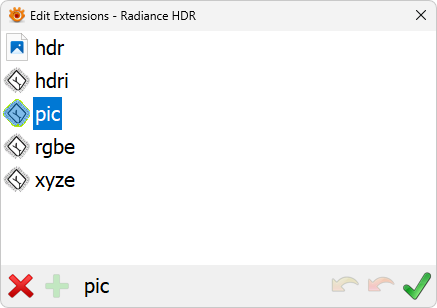
3.Select pic from the list of extensions. This will enable the red X remove button. Press this button to the extension.
4.Press the green Accept button to apply the change.
5.You will be asked if you want to assign with or without rights for properties. If you have Administrator access choose with rights so properties such as image dimensions are handled for the extension. If you don't have administrator rights and choose Assign without rights for properties the extension will still thumbnail but you will not get those properties in details view etc. 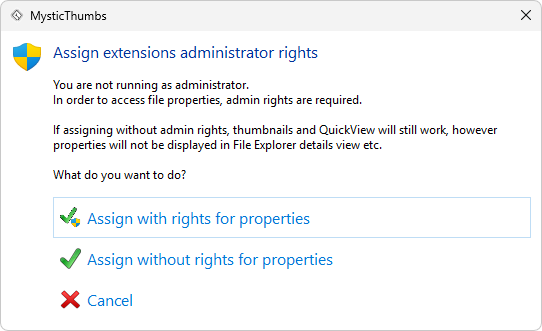
 See also Edit Extensions Dialog
Copyright © MysticCoder Pty Ltd